Airbnb - saved and scheduled messages
Your store link is an in-stay guest-experience extra, not a way to take a booking off Airbnb - so it always goes to a guest who has already booked with you, the same way you would send any other pre-arrival message.
Where to find it
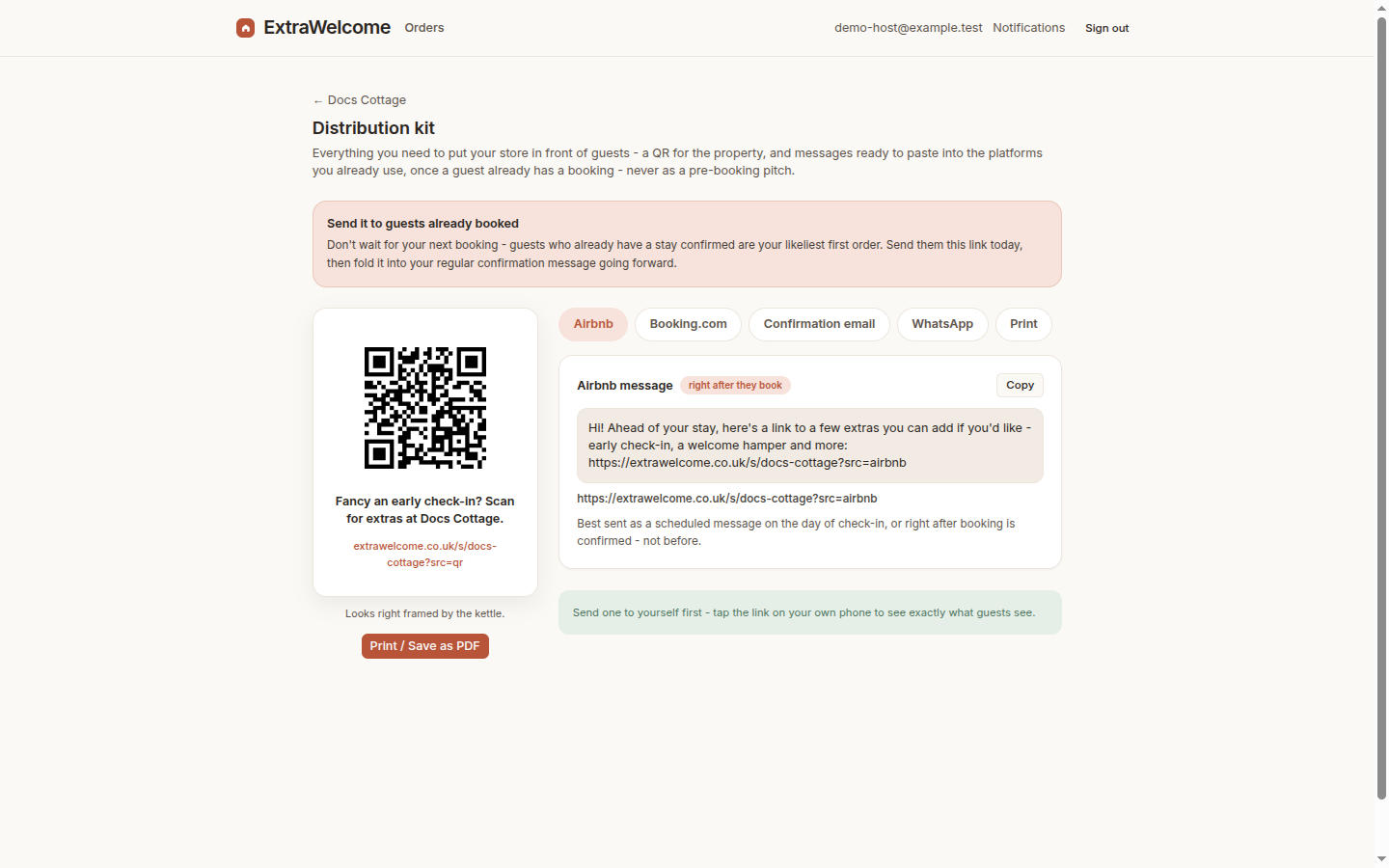
Open your property's share kit in the dashboard (Properties → your property → Share) and copy the Airbnb message card. It already has your
store link filled in, with a small tracking tag so you can see how many
guests come from Airbnb specifically.
The message
Hi! Ahead of your stay, here's a link to a few extras you can add if you'd like - early check-in, a welcome hamper and more: {your store link}
When to send it
Best sent as a scheduled message on the day of check-in, or right after booking is confirmed - not before. Airbnb lets you save this as a saved message for one-off sending, or set it up as a scheduled message that goes out automatically at a timing you choose (for example, three to four days before arrival). A scheduled message means you set this up once and every future guest gets it without you lifting a finger.
Screenshot pending manual capture - this step happens inside Airbnb's own host dashboard, not this product, so it needs a real Airbnb host account to capture from.
Saved vs scheduled, in short
- Saved message - sits in your quick-replies list; you send it manually whenever suits, useful while you are still finding your rhythm.
- Scheduled message - Airbnb sends it automatically at the timing you set. Once your extras are dialled in, this is the set-and-forget option.
Next: Booking.com reply templates or QR poster, email and WhatsApp.